Split-Screen CV Editing: See Changes in Real-Time
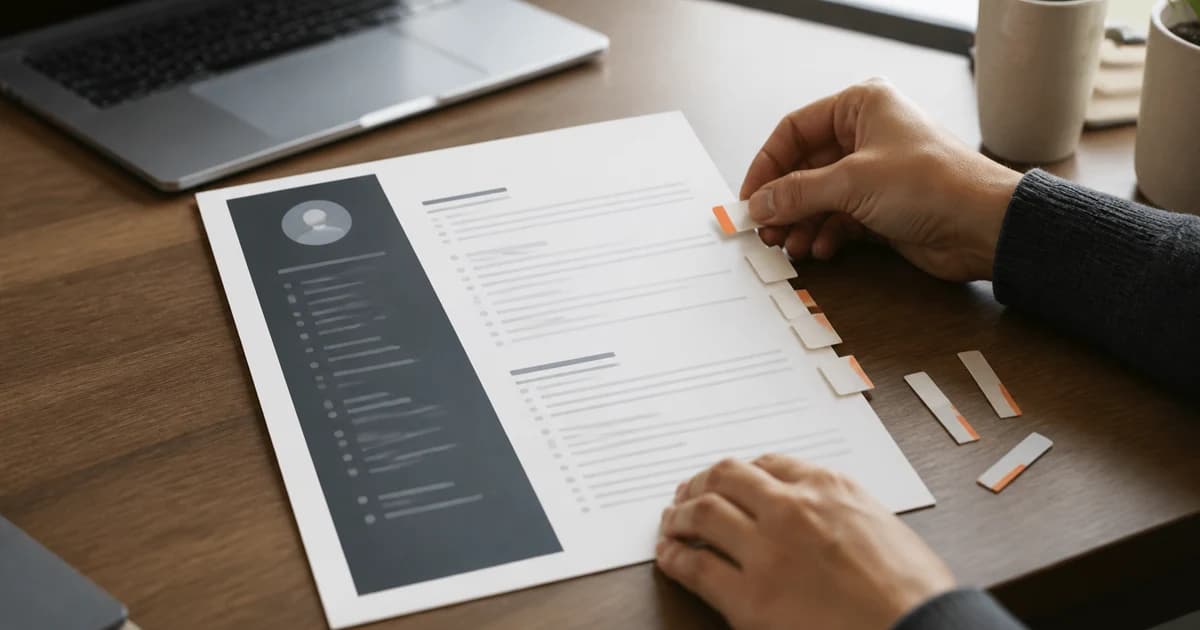
You edit a resume. You want to see how it looks. You open the preview tab. You check. You go back. You make a change. You open the preview tab again.
We watched people do this dozens of times per session. It was slow and annoying.
What changed
Focus mode collapses the sidebar and splits your screen in two. Resume editor on the left. Live PDF preview on the right. Every change you make shows up in the PDF immediately.
No tab switching. No waiting. Just edit and see.
How to use it
Hit the focus mode button in the resume header. Or press Cmd+L (Mac) / Ctrl+L (Windows). The sidebar slides out and the PDF panel takes its place.
Press the shortcut again to go back. The transition is instant.
Some browser extensions use the same shortcut. Dia, for example, binds Cmd+L by default. If the shortcut does not work, check your extension settings. In Dia you can rebind or disable the shortcut so it stops intercepting it.
Where it works
Focus mode is available on every resume view: from the candidate detail page, from a vacancy context, even when anonymization is active. The PDF preview stays in sync with whatever mode you are in.
If you are editing a motivation letter, the preview switches to the motivation letter PDF. If you toggle anonymous mode, the preview reflects the anonymized version. Same screen, same shortcut.
Why it matters
Recruiters who format a lot of CVs told us the constant context-switching between editor and preview was their biggest friction point. Not the AI, not the parsing. Just the back-and-forth.
This removes that friction entirely. You see the result of every edit as you make it.
Focus mode is live now. Open any resume and try Cmd+L.
Related reading:
On this page